Manage Skill Suites
A Skill Suite is a separately versioned collection of exact published Skill versions with one Entry Skill. Each member remains an independent Skill after installation.
Choose the right resource
| Resource | Purpose | How to use it |
|---|---|---|
| Skill | One package containing SKILL.md | Install with skillhub install; use in an Agent |
| Skill Suite | A pinned collection with an Entry Skill | Install all members with skillhub suite install |
| Suite Bundle | An author's ZIP or folder containing a manifest and member packages | Import, preview, confirm and complete review in the Web UI |
A Bundle is an authoring format. A Suite is not a workflow runtime: coordination depends on the entry and member instructions. A Skill can still be installed independently.
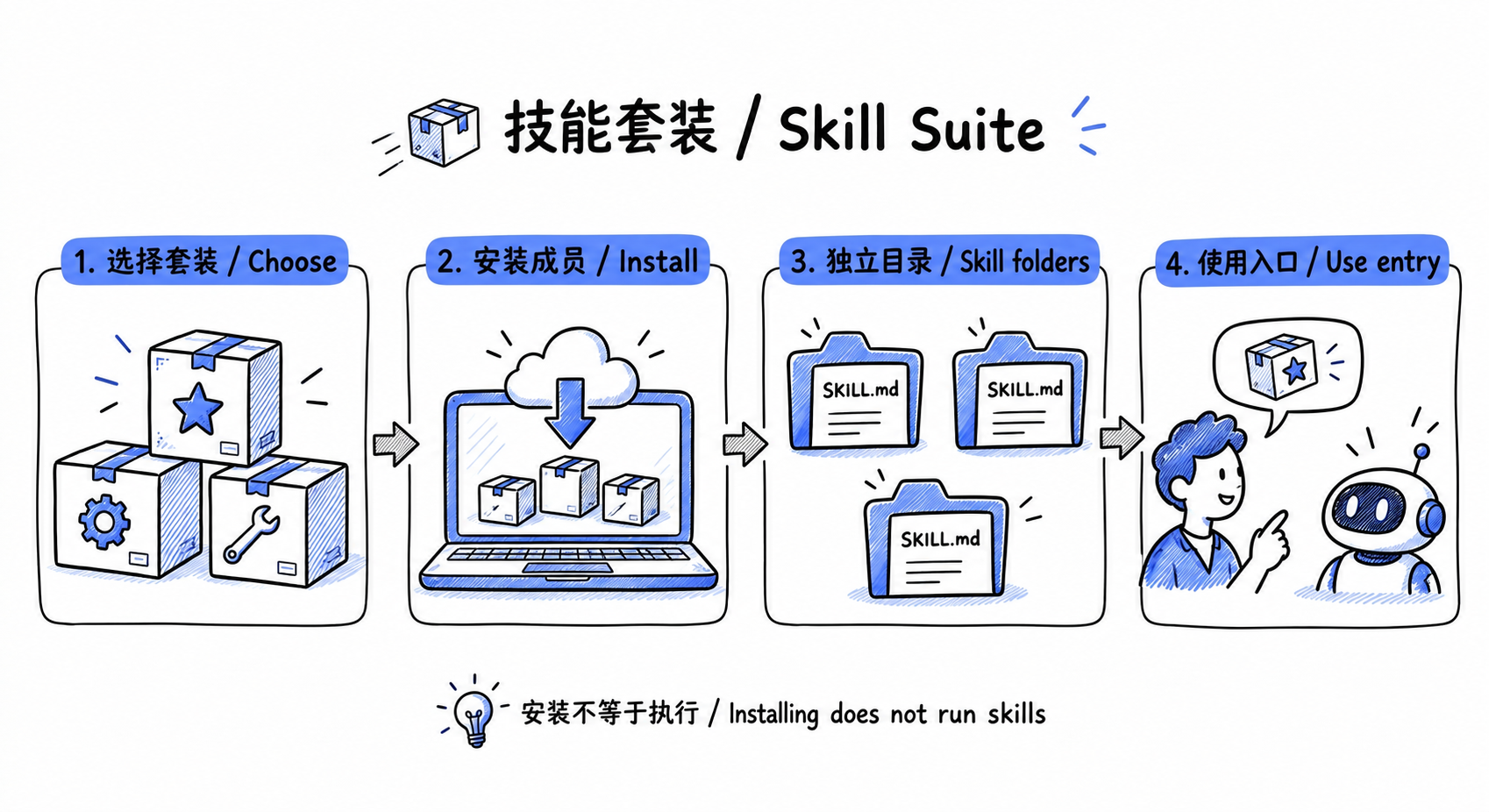
Installation ends at separate member files. Agent usage starts with an explicit task.
Install a Suite
Follow the related Suites on a Skill detail page to inspect the entry, pinned members and installability. A related-Suite badge denotes membership, not a mandatory dependency. Ordinary skillhub search searches Skills, and same-named Suites require the explicit suite command.
Replace the example coordinate below with a real Suite. Log in to the appropriate registry for restricted resources.
skillhub login
# Run from the target project root
skillhub suite install @team/example-suite --scope project --agent codex
# Or target Claude Code
skillhub suite install @team/example-suite --scope project --agent claude-code
# Pin a Suite version at user scope
skillhub suite install @team/example-suite --version 1.0.0 --scope user --agent codex
Use --registry <url> for a self-hosted registry. The server must advertise skill-suite-v1. If the CLI does not recognize the command, inspect skillhub version and skillhub help suite.
Project-scoped Codex members are installed separately:
.codex/skills/
├── entry-skill/SKILL.md
├── member-a/SKILL.md
└── member-b/SKILL.md
Claude Code uses .claude/skills; user scope uses the corresponding directory under the home directory. Directory names are member slugs. There is no generated combined Suite Skill. Installation downloads and verifies all members; unavailable members are not silently replaced by newer versions.
Use the installed skills
- Open the target project in the selected Agent and refresh its skills or start a new session as required by that product.
- Check the installation paths and verify that the Agent discovers the Entry Skill's
SKILL.md. - Follow the entry instructions to configure required tools, environment variables and services. Installing Skill files does not install these dependencies.
- Ask the Agent: “Use the entry skill
<entry name>for the following task, following its instructions for the other members: …”
The Suite coordinate identifies the installation; invoke the actual Entry Skill or an individual member. Trigger syntax and loading behavior belong to the Agent. SkillHub has no generic suite run command.
Check, upgrade and remove
skillhub suite check @team/example-suite
skillhub suite upgrade @team/example-suite --check
skillhub suite upgrade @team/example-suite
skillhub suite remove @team/example-suite
check reports member state and remote version information. upgrade --check previews changes. A member release does not mutate an installed Suite: upgrades follow a new SuiteVersion's pinned plan. Manage Suite-owned targets through the Suite lifecycle.
--scope, --agent, --dir and --version are install-only options; later operations use inventory. Removal retains direct installations, members shared with other Suites and locally modified members. Do not delete inventory to bypass a warning.
Create a Suite
Use the Web editor to select published members and an entry, or import a Suite Bundle to upload local members. PUBLIC and NAMESPACE_ONLY Suites require Suite-level review; PRIVATE Suites can publish directly. Member Skills retain their own scan and review workflows.
A version supports up to 100 distinct members and requires one member as entry. Nested Suites, version ranges and external-registry members are unsupported. The CLI manages installations; it does not provide suite publish or import authoring manifests.
Read local check results
skillhub suite check reads inventory and remote Suite state; it is not fully offline. Member ok means directory content matches the pinned fingerprint, missing means the directory is absent, and modified means content changed. The whole Suite is current only when the remote latest version matches, the installed version remains installable, and every member is ok.
JSON ok: false can indicate detected changes rather than a thrown command error. Automation should inspect member and remote state, not just the process exit code.
Shared members and upgrade decisions
Suites may reuse a member directory with the same source and content. If another Suite owns that target, upgrading this Suite cannot replace its version in place. --force does not bypass shared-source protection. Inspect both plans and choose compatible versions or separate installation targets.
Install and upgrade download and verify all members before committing directories and inventory. A mid-commit failure attempts to restore replaced directories. Preserve the error and run check again; do not edit inventory to manufacture success.
Troubleshooting
| Symptom | Action |
|---|---|
| Unknown Suite action | Supported actions are install, check, upgrade and remove, not run/publish |
| Server capability missing | Verify registry and server version; ordinary install does not install a Suite |
| Modified member | Preserve needed edits before deciding whether to replace them |
| Member withdrawn or access narrowed | Historical pins remain, but the plan blocks installation; ask the maintainer for an installable release |
| Removal says Preserved | Inspect shared, modified or missing reason; retention does not itself mean failure |
| Agent option rejected for check/remove | Target options belong to install; later actions use the saved Suite record |