Namespace & Team Management
Overview
Namespaces are the core organizational unit in SkillHub. Each namespace represents a team or project with its own members, permissions, and skill packages.
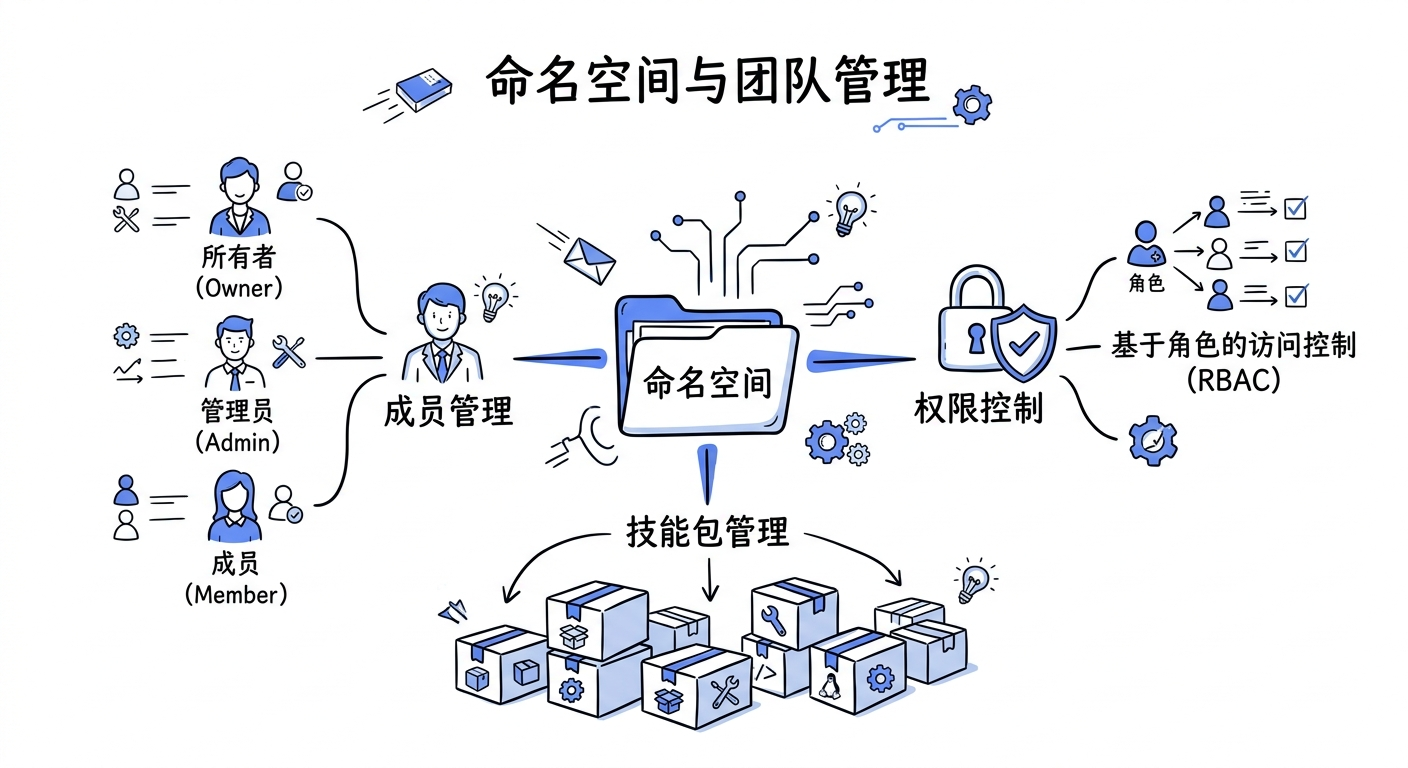
Purpose of Namespaces:
- Isolation: Skill packages from different teams don't interfere with each other
- Permissions: Role-based access control (RBAC)
- Collaboration: Team members can jointly manage skill packages
- Governance: Administrators can review, archive, and freeze skill packages
Role System:
| Role | Permissions |
|---|---|
| Owner | Full control, including deleting the namespace and managing all members |
| Admin | Manage members, review skill packages, modify settings |
| Member | Publish skill packages, view private skill packages |
Namespace States:
- Active: Normal operation
- Frozen: Cannot publish new skill packages
- Archived: Hidden from search results
Use Cases
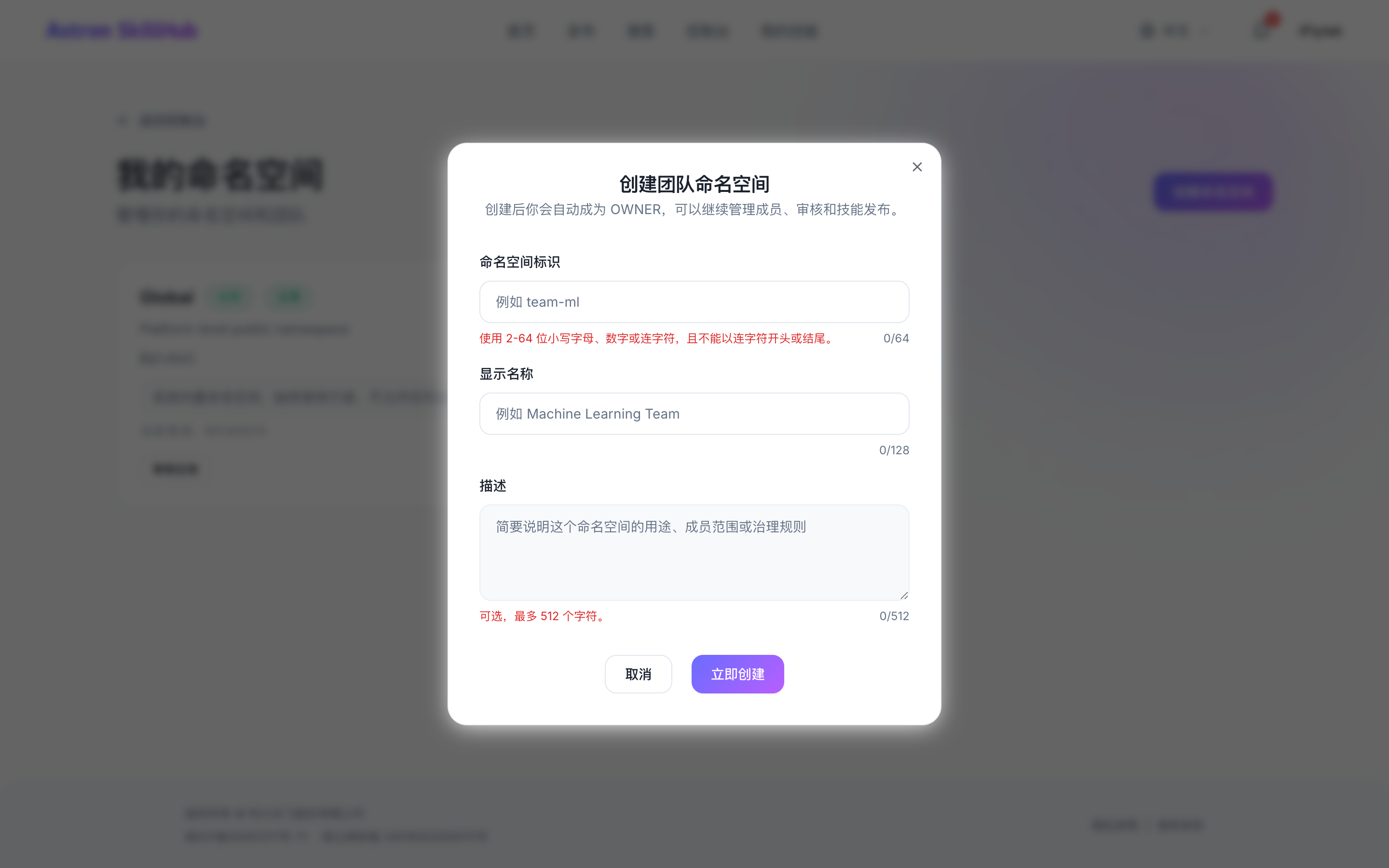
Case 1: Create a Team Namespace
A team lead creates a new namespace to manage the team's skill packages.
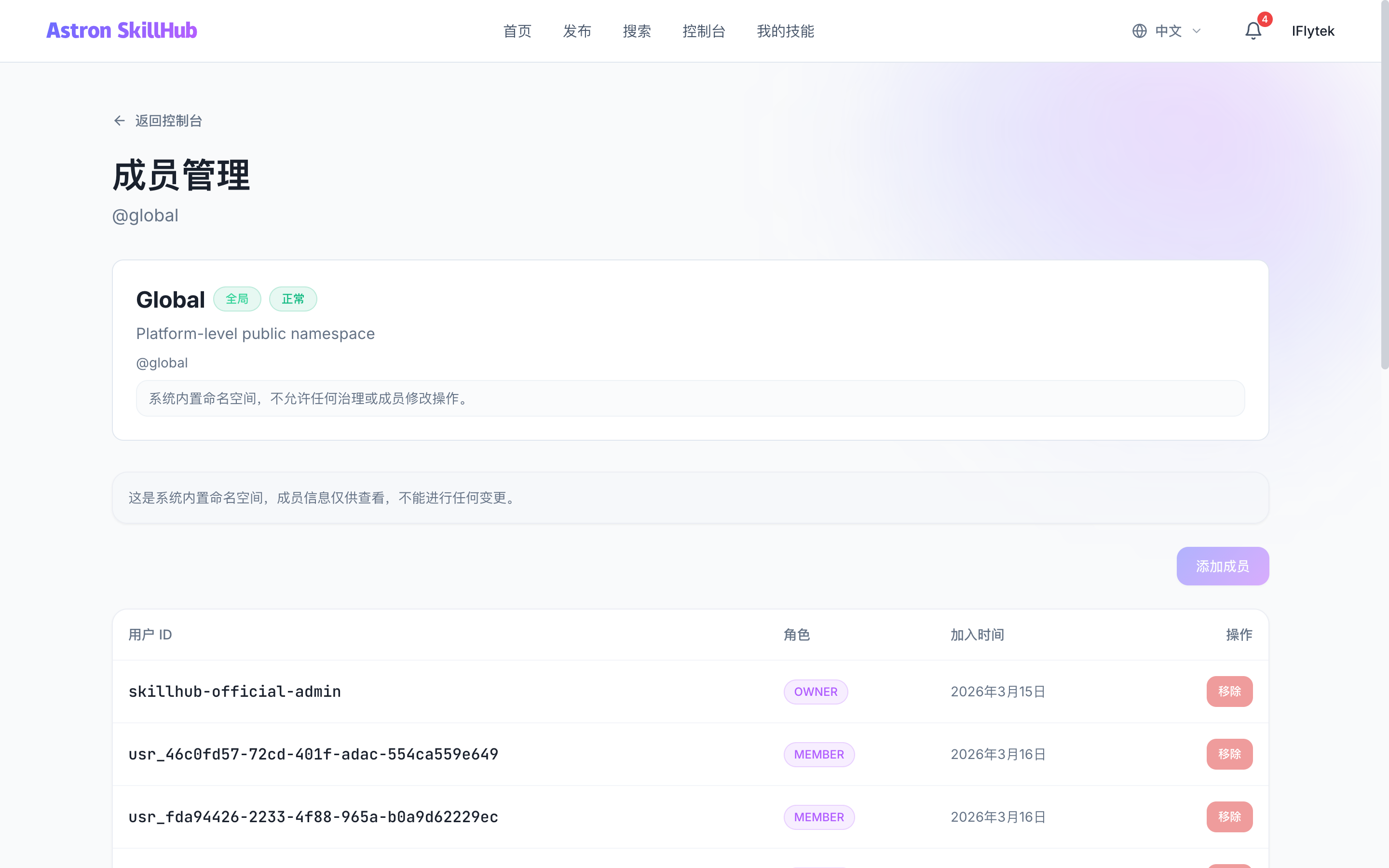
Case 2: Add Team Members
An administrator invites new members to join the namespace and assigns appropriate roles.
Case 3: Permission Management
Adjust member roles to control who can publish, review, and manage skill packages.
Case 4: Namespace Freeze
Discover a security issue in the namespace and temporarily freeze all publish operations.
Step-by-Step Guide
Create a Namespace:
- Navigate to
/dashboard/namespaces - Click "Create Namespace"
- Fill in the information:
- Name: Team name (e.g., "iFlytek AI Team")
- Slug: URL identifier (e.g., "iflytek")
- Description: Brief description of the team's responsibilities and skill package scope
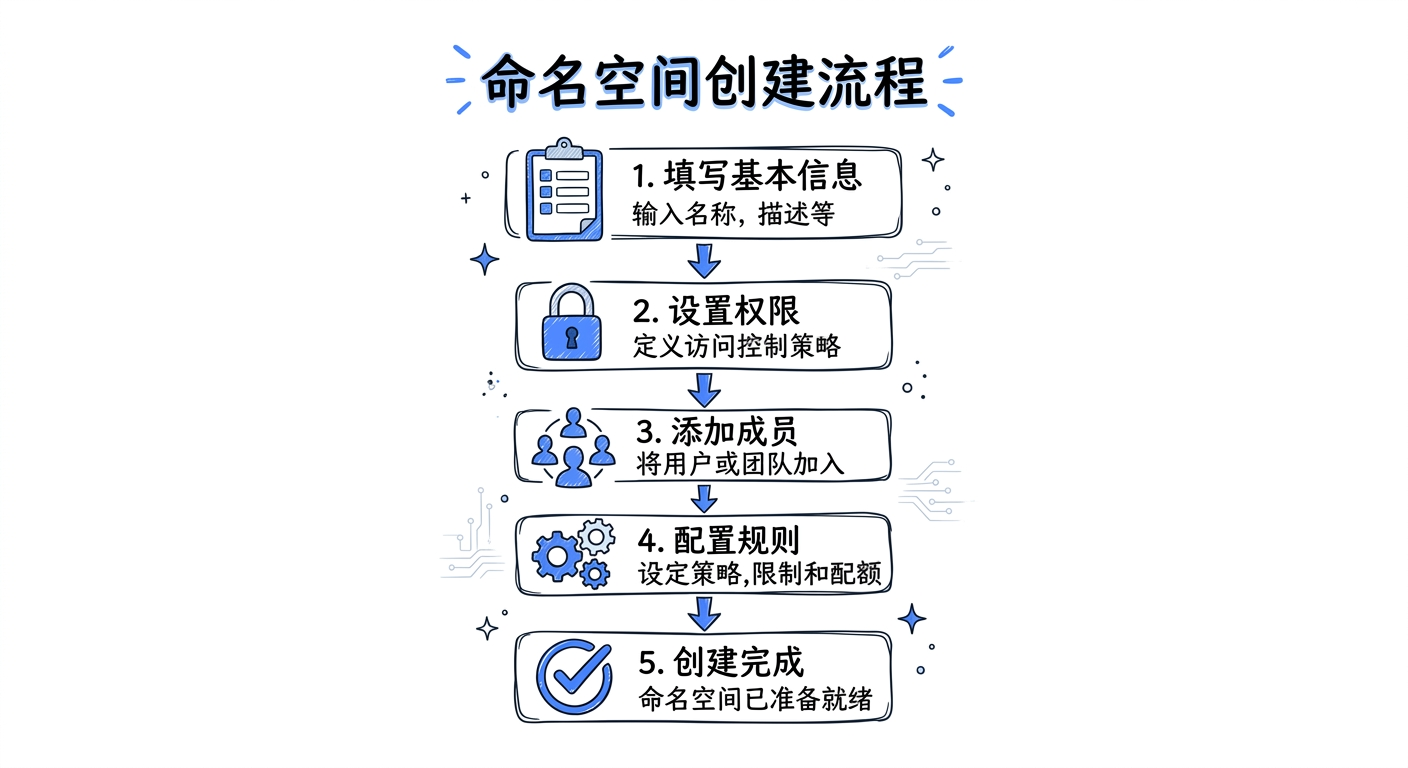
- Submit to create; you are automatically set as the Owner
Add Members:
- Go to the namespace detail page
- Click the "Members" tab
- Click "Add Member"
- Search for users (supports searching by username, email)
- Select a role (Owner / Admin / Member)
- Confirm to add
Invite with a link:
- An Owner or Admin opens the Members page of an ACTIVE team space and selects "Invite member".
- Share the copied link securely. It expires after 24 hours and can be redeemed once by one person who is not already a member.
- The recipient must first pass the usual SkillHub login and account access rules. The page shows the space, current account, and MEMBER permissions. Joining happens only after explicit confirmation.
- "Revoke invitation" invalidates the link immediately. Creating a new link asks for confirmation before replacing a still usable one; existing members remain members.
Anyone who obtains the link can use it after normal account admission. Do not post it in a public channel. The login return URL does not contain the invitation token; the current browser tab stores it temporarily until joining or terminal invalidation.
Manage Permissions:
- Find the target user in the member list
- Click "Change Role"
- Select a new role and confirm
- Permission changes are recorded in the audit log
Freeze a Namespace:
- Go to namespace settings
- Click "Freeze Namespace"
- Provide a reason for freezing (optional)
- Confirm to freeze
After freezing, all skill packages in the namespace cannot publish new versions, but existing versions remain downloadable.
Skills After Member Removal
Removing a member does not delete, move, transfer, or unpublish their skills. The namespace, address, current owner, and version history remain unchanged.
An active account that still owns a skill can view and download its own content, including private content, drafts, and history, from My Skills. The management interface explains that membership has ended and the skill is read-only. The owner cannot upload or republish, change the avatar or visibility, withdraw requests, archive, or delete content. This exception does not grant access to another owner's internal skills.
Rejoining restores normal maintenance permissions if the account is active and ownership is unchanged. Disabled accounts cannot use the owner read exception. Re-enabling an account does not recreate removed namespace membership. Previously submitted review requests remain in the existing review workflow; removal does not automatically approve or withdraw them.
Existing namespace and platform governance permissions remain unchanged. Removal does not appoint a successor. This change adds no skill transfer, self-service namespace exit, or permanent account deletion feature.
API Reference
Create a Namespace:
POST /api/v1/namespaces
Content-Type: application/json

{
  "name": "iFlytek AI Team",
  "slug": "iflytek",
  "description": "iFlytek's AI agent skills"
}
Parameter Reference:
| Parameter | Type | Description |
|---|---|---|
| name | string | Namespace name (required, 2-50 characters) |
| slug | string | URL identifier (required, unique, 2-64 characters, lowercase letters, numbers, hyphens only) |
| description | string | Description (optional, max 500 characters) |
Get Namespace Details:
GET /api/v1/namespaces/{slug}Update a Namespace:
PUT /api/v1/namespaces/{slug}
Content-Type: application/json

{
  "name": "iFlytek AI Team (Updated)",
  "description": "Updated description"
}
Add a Member:
POST /api/v1/namespaces/{slug}/members
Content-Type: application/json

{
  "userId": "user-123",
  "role": "MEMBER"
}
Update Member Role:
PUT /api/v1/namespaces/{slug}/members/{userId}/role
Content-Type: application/json

{
  "role": "ADMIN"
}
Remove a Member:
DELETE /api/v1/namespaces/{slug}/members/{userId}Freeze a Namespace:
POST /api/v1/namespaces/{slug}/freeze
Content-Type: application/json

{
  "reason": "Security investigation"
}
Unfreeze a Namespace:
POST /api/v1/namespaces/{slug}/unfreezeInvite Members and View History
Team Owners and Admins can create a link from Members → Invite members. It expires after 24 hours and permits one new member to join. The recipient must sign in, meet existing admission rules, and confirm joining. Replacing an active link or revoking it requires confirmation and does not remove existing members.
New links use /join#invite=token. The creator's account stores the link temporarily in the current browser tab. After refreshing, reopen the invitation dialog to copy it again, provided the server confirms that it is still the current valid invitation. This temporary storage cannot recover the link in another account, tab, or device, and history never returns invitation tokens. If the original link was not saved, create a new invitation and confirm replacement of the old link.
The dialog includes a read-only history (five records per page, up to 240px tall) showing the creator, creation and expiration times, status, and the account that successfully joined. Snapshot names are displayed first; full account IDs are available on hover, with abbreviated IDs used when names are missing. Each generated invitation has its own record. Replacement, revocation, expiration, or a member leaving does not erase history. History cannot restore expired links and does not indicate current membership. Only the space's Owner/Admin can view it; platform roles do not bypass this restriction. Frozen or archived spaces retain a history-only entry.
An upgrade imports only the provable current invitation, marked as a legacy record; earlier links are not reconstructed from incomplete audit data. History remains while the space exists and is deleted when the space is permanently deleted. Existing audit records follow their original retention rules.
The history endpoint requires a browser session: GET /api/v1/namespaces/{slug}/invitations/history?page=0&size=10. Page sizes are bounded to 1–50; tokens and hashes are never returned.
Notes
Slug Uniqueness: Namespace slugs must be globally unique and cannot be changed after creation. Use a short identifier for your team or project.
- Owner Requirement: Each namespace must have at least one Owner; the last Owner cannot be removed
- Role Inheritance: Namespace members automatically have access to all skill packages in that namespace
- Freeze Mechanism: Administrators can freeze a namespace; no new skill packages can be published while frozen
- Archive Mechanism: Archived namespaces are hidden from search results, but existing skill packages remain accessible
- Audit Logs: All member changes and permission adjustments are recorded in the audit log